

Hello, welcome to this tutorial article.
In this article, I will show you how to "Remove the Background" from any image.
To access the Background Remover dashboard, you first need to create a project. So, If you are yet to create one, then please check out this article on how to create a project.
Let's proceed!
Step 1: Once logged in,
- From your dashboard, choose your preferred project.
- Scroll to "AI Studio" then click AI Images"
- Click "Remove Background"
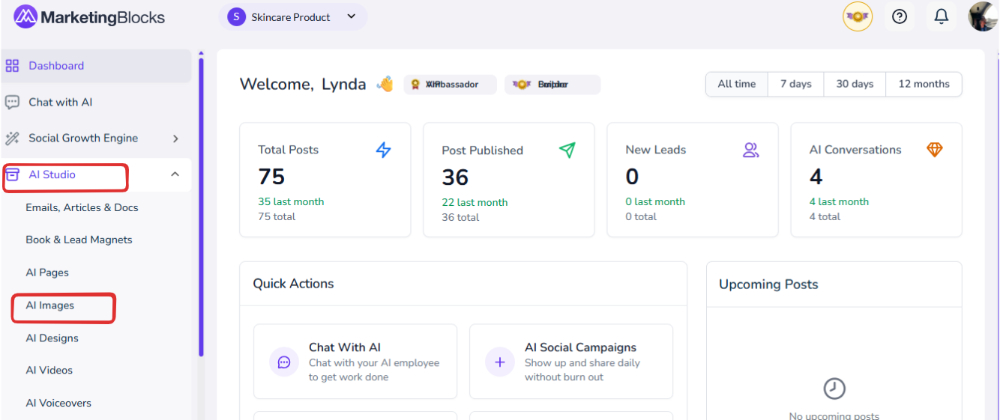
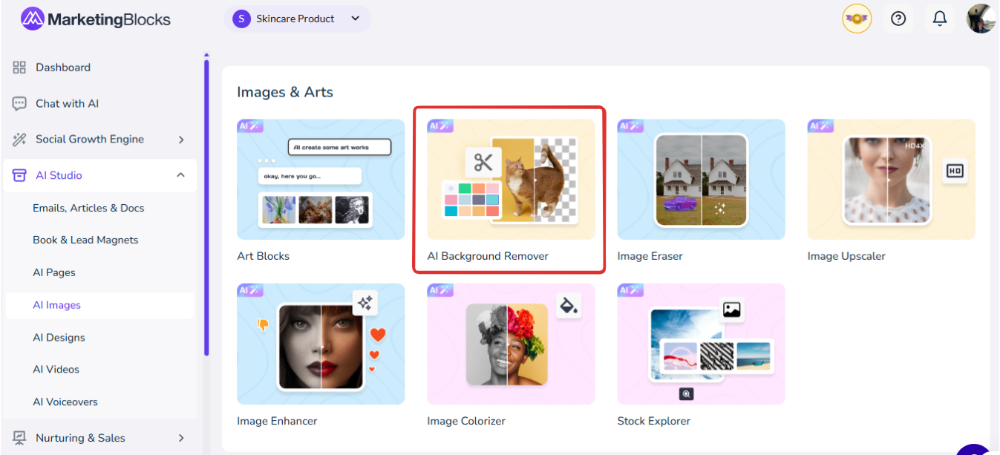
Step 2: A page will open. Click on the “Upload image” or you could “Drop a File” to remove your background.
PS: Kindly note that the supported image format can only be in PNG, JPEG, and JPG
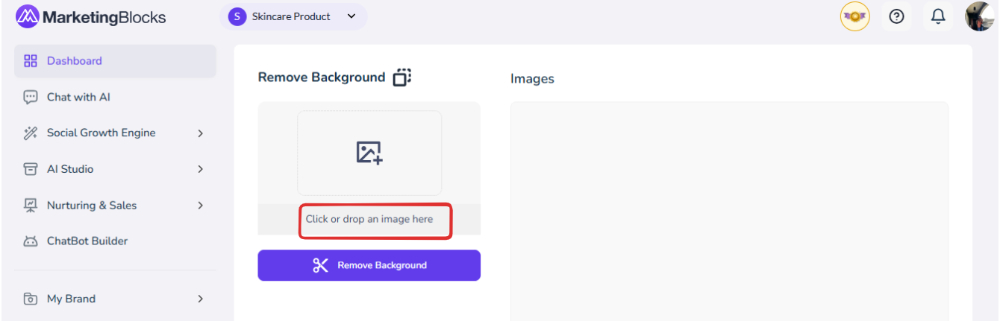
Step 3: Then, here is how the uploaded image will look like.

Step 4: Here is how the image without the background will be.
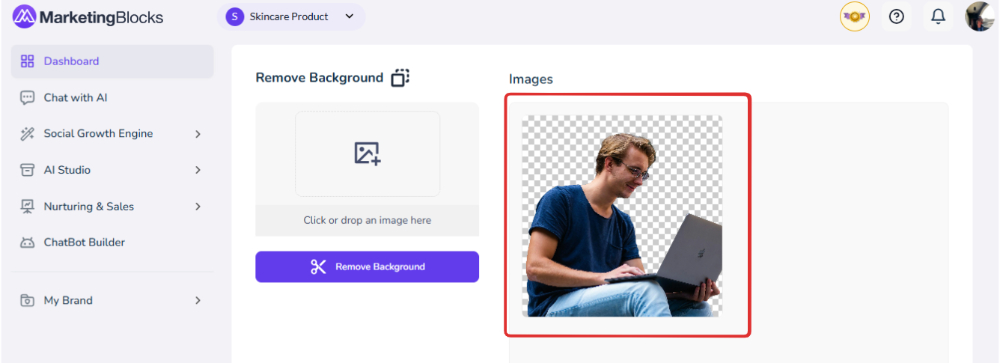
And that’s it!
If you need further assistance, kindly use the chat widget at the bottom-right corner of this page or send an email to our support desk(support@marketingblocks.ai) for prompt assistance. Thank you!